Service Designer
- “xxx” are a secondary navigation item under xxx.
- This area is for the “a role”, and is not visible to the “b role”.
- This area is provided so the role can:
Exporting the Canvas
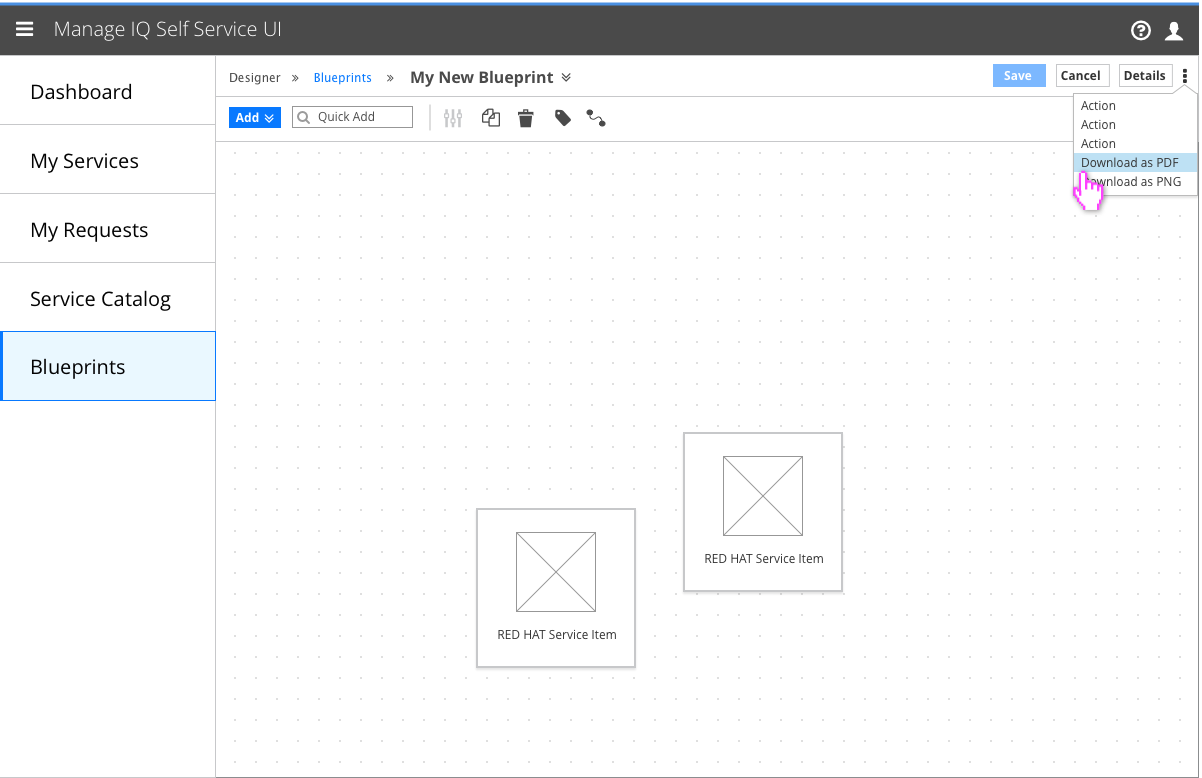
- Export/download options will be available in the project-level actions kebab.
Implementation Details
- This feature will make use of the browser’s “downloads” section.
- Downloads should be named according to the style “My_New_Blueprint.pdf”
Pan/Zoom the Canvas
Maximum Zoom
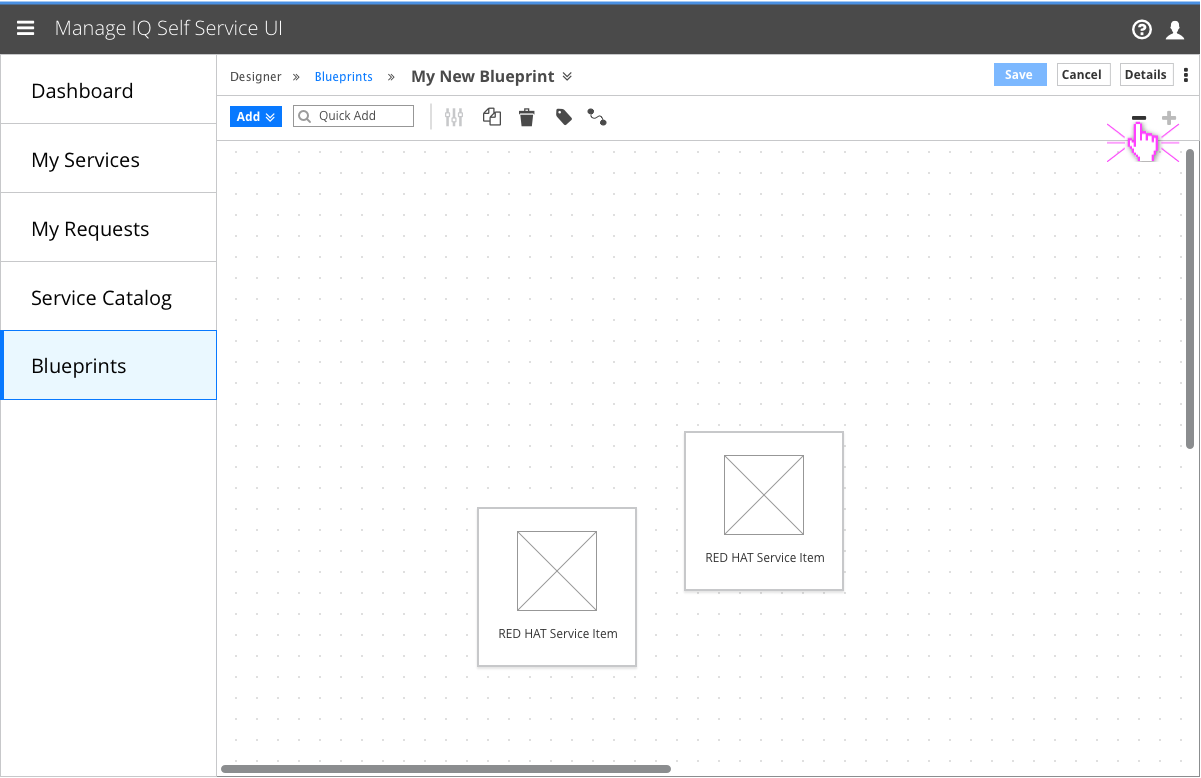
- Clicking on the - and + buttons will zoom the canvas out and in, respectively.
- The default zoom level will be considered 100% zoom. The + button is disabled at this zoom level.
Implementation Details
75% Zoom
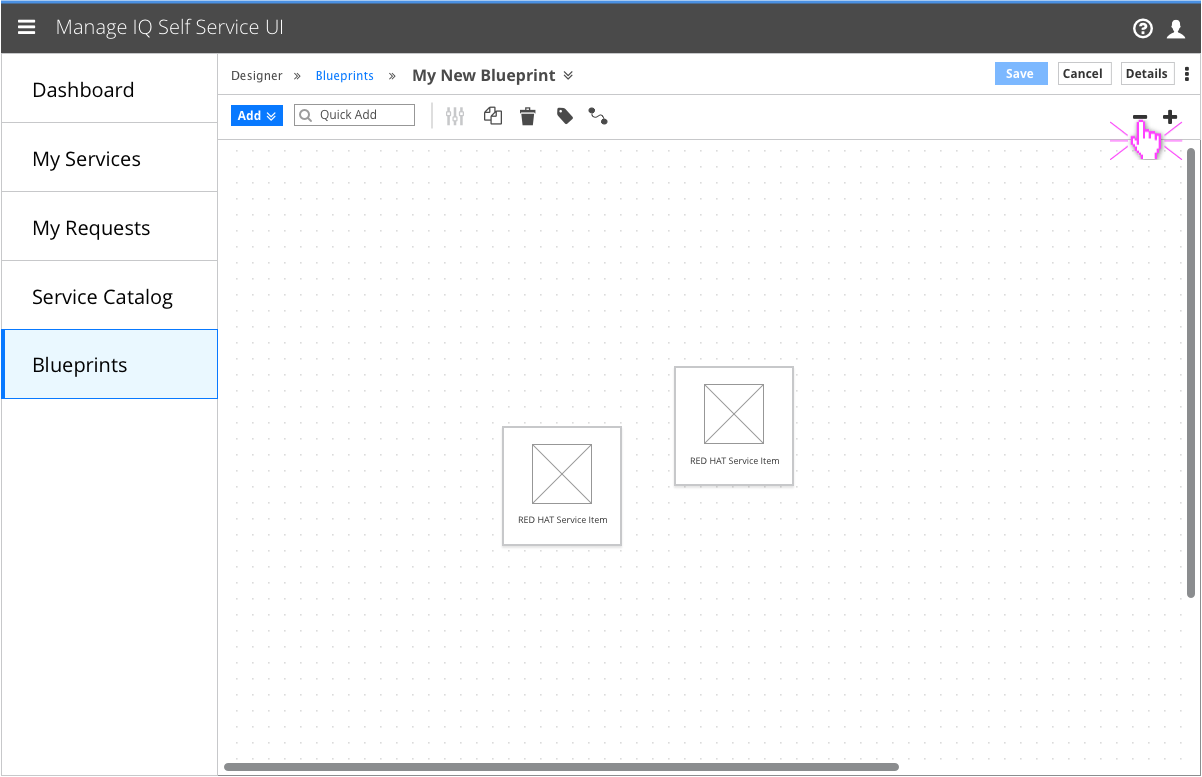
- Clicking the button once will cause the canvas to transition to 75% of the original zoom level.
50% Zoom
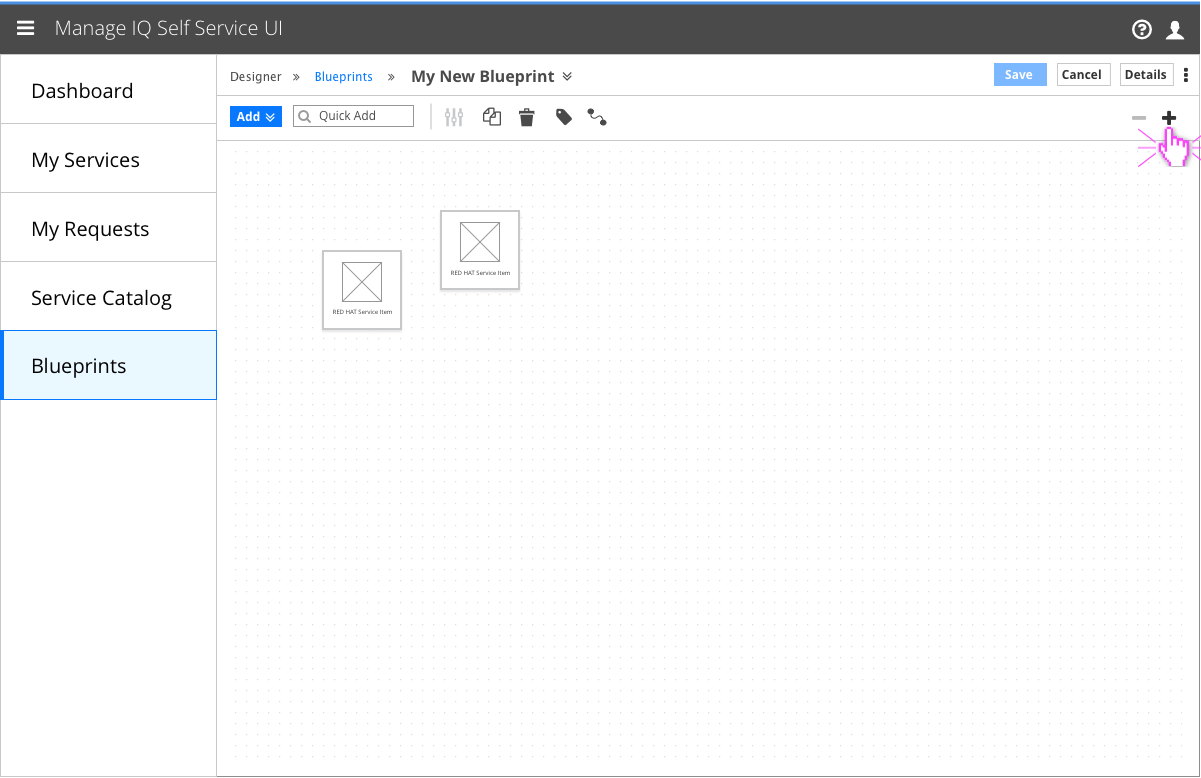
- Zooming out a second time will redraw the canvas at 50% of the original size. This will be the most zoomed-out state of the canvas.
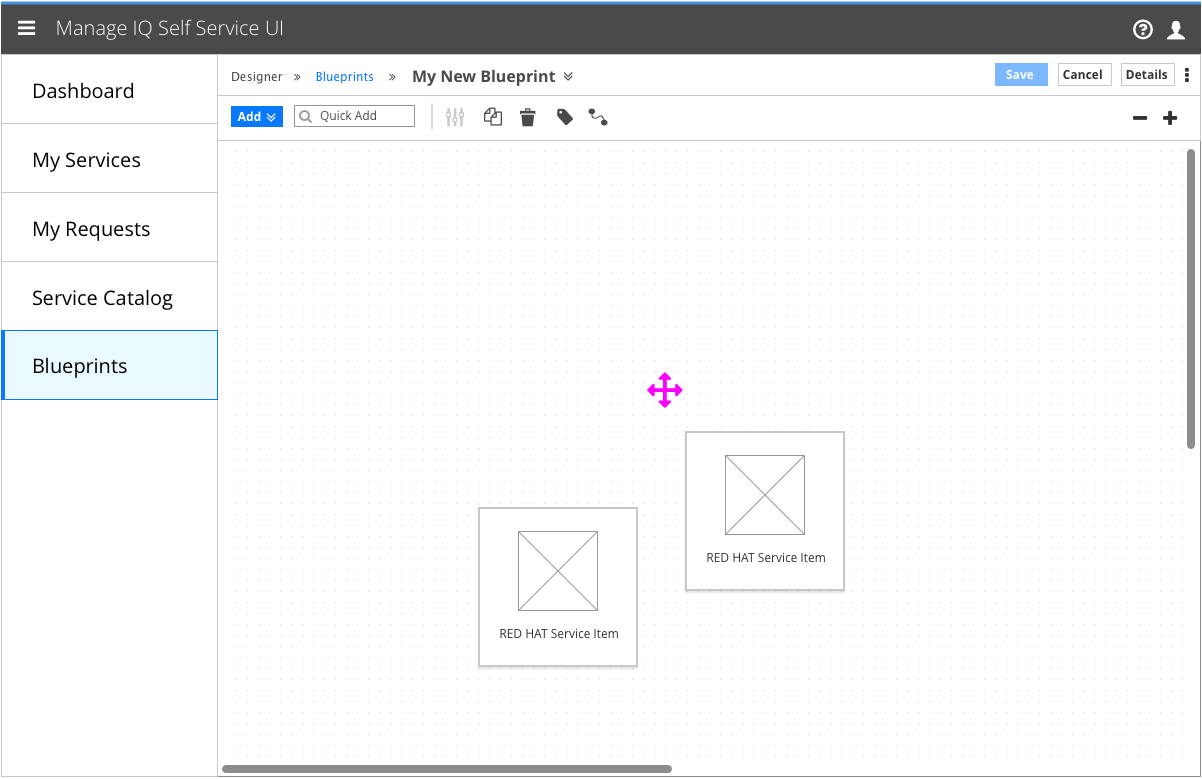
Before Panning
Implementation Details
- When the canvas is not zoomed out all the way, hovering over the canvas background will change the mouse pointer to “cursor:all-scroll”.
- When it is zoomed out all the way, the cursor property will be set to “cursor: default”.
After Panning
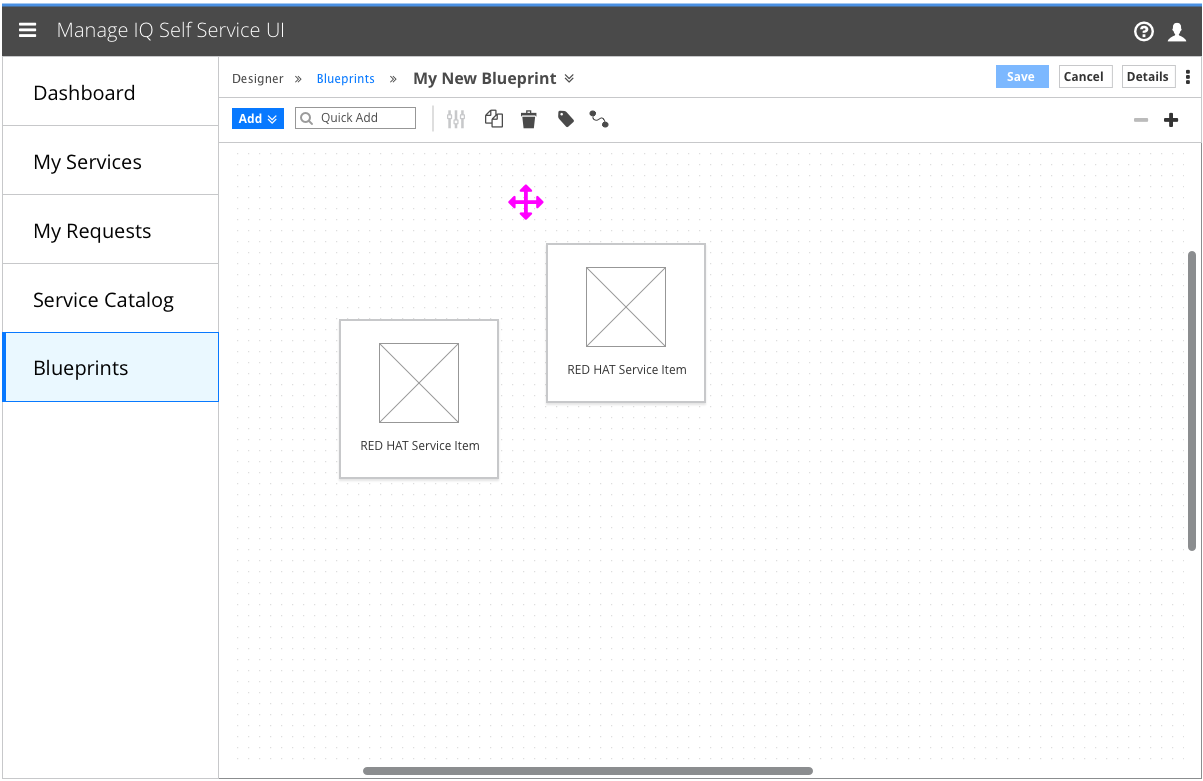
- Clicking and dragging on the canvas background when the cursor is in the all-scroll state will pan the canvas.
Customer Feedback
Customer Feedback Received
- Overview of customer feedback received
Necessary Customer Feedback
- Questions to follow up with customers